Getting Webcam input in HTML5 page

With HTML5 things have become very easy, we get many platform APIs in javascript which were previously not available. Earlier we made use of Flask with action script to achieve a lot of it.
HTML Scaffold for our Application
We will design a simple HTML5 application (webpage) which will get the webcam input and play it in a video tag. To get started, lets make the scaffold HTML elements.
<!DOCTYPE html>
<html>
<head>
<meta charset="utf-8">
<title>Webcam App</title>
</head>

<body>
<div class="container">
    <video autoplay="true" id="videoElement">
    </video>
</div>

<div class="container">
    <button id="start" onclick="startVideo()">Start</button>
    <button id="stop" onclick="stopVideo()">Stop</button>
</div>

<script>
// add code here
</script>
</body>
</html>
We have made a simple HTML page, it has container - which we will use to style the application better. It has a video tag which we will use to display the webcam stream. And it has two buttons start and stop which we will use to start or stop the stream.
Basic CSS styles
Let's add some basic styling to the application. Make a style tag and add the following in it.
.container {
// make it smaller and centered horizontally
    margin: 0px auto;
    width: 500px;
}
video {
    width: 500px;
    height: 375px;
    background-color: #666;
}
button{
// make buttons look nicer
    background: #eee;
    color: #333;
    border: 0;
    padding: 10px;
}
#start{
// make start button a bit different
    background-color:#3498db;
    color: #fff;
}
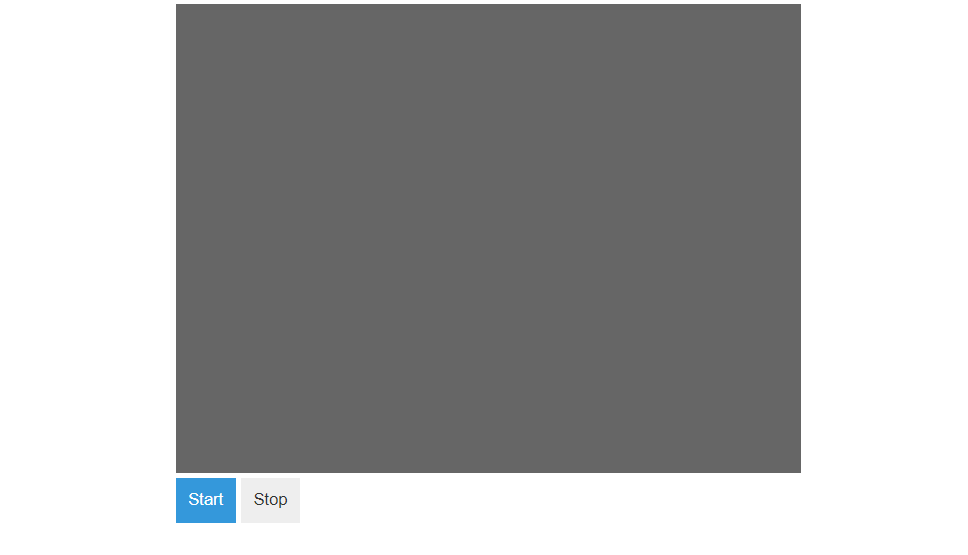
Now, we should have a nice looking UI for our webcam stream viewer application -
The JS code
Next, we add the js code. Specifically, we define the functions startVideo() and stopVideo() which will respectively start and stop the webcam stream. Add the following in the script tag.
    var video = document.querySelector("#videoElement");

    function startVideo(){
        // check if there is a webcam device present
        if (navigator.mediaDevices.getUserMedia) {
        // try getting the user media stream
        navigator.mediaDevices.getUserMedia({ video: true })
            .then(function (stream) {
            // we got stream, lets set the src to the stream
            video.srcObject = stream;
            })
            .catch(function (e) {
            console.log("Something went wrong! " + e);
            });
        }
    }

    function stopVideo(){
        // get the currently playing tracks and stop all the tracks.
        var stream = video.srcObject;
        var tracks = stream.getTracks();

        for (var i = 0; i < tracks.length; i++) {
            var track = tracks[i];
            track.stop();
        }

        video.srcObject = null;
    }
Trying it out
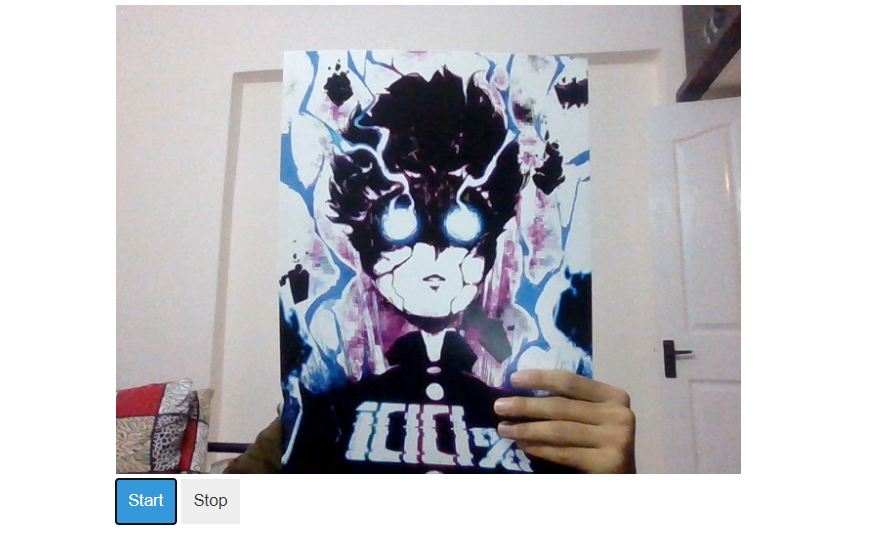
When we click on the start button, the browser will ask the user - permission to use the webcam. The application will work only when the user allows the use of the webcam. When the user allows the use, we should see the stream on the video tag.
About the author
I am a full stack developer mainly using golang. I work on Cloud at HPE, Bangalore, India.
Comments
Join the discussionNice!
Still wanting to use video but for overlays and stuff
Hey Mridul! Please tag it with JavaScript for better reach. :) Nice article -- keep them coming.
Any plans to map a custom domain?
Hey Sandeep, added the tag. I got a damn good two letter sub domain.
I will eventually add a custom domain, but I thought it might help people know about hashnode looking at the domain mg.hashnode.dev.


